Overview
PestAnnihilate includes one-click demo import functionality that automatically sets up your website with professional demo content. This is the fastest way to get a complete pest control website up and running.
🎯 What Gets Imported
| Content Type | Included | Description |
|---|---|---|
| Pages | ✓ | Home, About, Services, Contact, Blog |
| Posts | ✓ | Sample blog posts about pest control |
| Services | ✓ | 6+ pest control service pages |
| Testimonials | ✓ | Customer reviews with ratings |
| Team Members | ✓ | Staff/professionals profiles |
| Menus | ✓ | Primary & Footer menus configured |
| Widgets | ✓ | Footer widgets, sidebar content |
| Theme Settings | ✓ | Colors, typography, layouts |
| Customizer Options | ✓ | All theme mods pre-configured |
| Elementor Templates | ✓ | Pre-built sections and pages |
| Images | ✓ | Demo images (placeholder/unsplash) |
| Contact Forms | ✓ | CF7 forms pre-built |
📋 Prerequisites
Before Starting Demo Import:
☐ WordPress 6.0+ installed
☐ PestAnnihilate theme activated
☐ PHP Memory Limit: 256M minimum
☐ Max Execution Time: 300 seconds
☐ Max Upload Size: 32M minimum
⚙️ Required Plugins Installation
Install Supporting Plugins
The theme will prompt you to install:
- PestAnnihilate Core
- Elementor Page Builder
- Contact Form 7
- One Click Demo import
- Envato Market
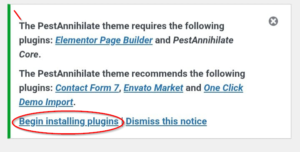
Click Begin install Plugins
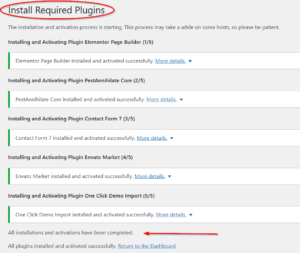
🚀 Step-by-Step Demo Import Process
Step 1: Navigate to Import Page
Dashboard → Appearance → Import Demo Data
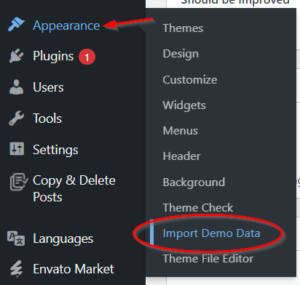
You’ll see the PestAnnihilate import screen with theme preview.
Step 2: Start the Import
-
Click Import Demo Data button
-
Confirm warning message (yes, import)
-
Wait for progress bar to complete
-
Do NOT close browser window
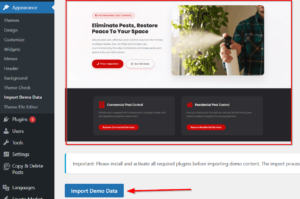
Step 4: Monitor Progress
Step 5: Post-Import Setup
After import completes:
-
Click Visit Site to preview
-
Go to Settings → Permalinks and click Save Changes
-
Clear any caching plugins
-
Review and customize content
🔧 Troubleshooting Import Issues
Issue 1: Import Stops at 50%
Solution: Increase PHP limits
// Add to wp-config.php
define('WP_MEMORY_LIMIT', '256M');
define('WP_MAX_MEMORY_LIMIT', '512M');
set_time_limit(300);
Issue 2: “Maximum execution time exceeded”
Solution:
// Add to .htaccess
php_value max_execution_time 600
php_value memory_limit 256M

// Or in wp-config.php
ini_set('max_execution_time', 600);
Issue 3: Images Not Importing
Check:
-
- ✓ Uploads folder is writable (755 permissions)
- ✓ PHP GD library is installed
- ✓ Disk space available
-
✓ No hotlink protection active
// Regenerate Elementor CSS
Dashboard → Elementor → Tools → Regenerate CSS
📊 Common Import Errors & Solutions
| Error Message | Cause | Solution |
|---|---|---|
| “Unable to import file” | File permission | Check /uploads folder permissions |
| “Allowed memory size exhausted” | Low memory limit | Increase WP_MEMORY_LIMIT |
| “Maximum execution time” | Script timeout | Increase max_execution_time |
| “cURL error 28” | Connection timeout | Check server firewall |
| “Invalid file type” | Wrong file format | Download fresh demo file |