What is Polylang?
Polylang is a multilingual plugin that allows you to create content in multiple languages. It works perfectly with PestAnnihilate’s custom post types.
Installation
Step 1: Install Polylang
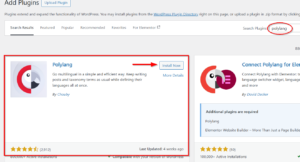
Dashboard → Plugins → Add New
Search for "Polylang"
Install and Activate
Step 2: Run Setup Wizard
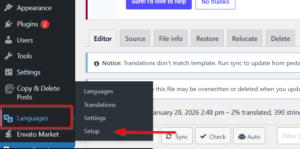
Dashboard → Languages → Setup Wizard
Basic Polylang Configuration
Step 1: Choose Languages
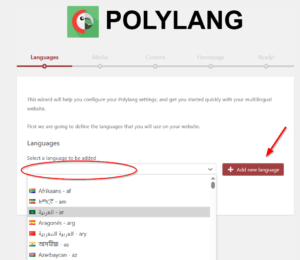
Step 2: Activate Languages
-
Polylang will scan your content
-
Choose which content to duplicate or translate
-
Finalize setup
Translating Content with Polylang
Translating Pages
Step 1: Create Original Page
-
Create page in default language (e.g., English)
-
Add content, images, Elementor elements
-
Publish page
Step 2: Add Translation
Pages → All Pages
Hover over your page → Click "Add translation" (+ icon)

Step 3: Translate Content
Edit the page with Elementor and Translate: Content → In the chosen Language
Translating Custom Post Types
PestAnnihilate’s custom post types (Services, Team, Pests, Portfolio) are fully Polylang compatible.
Step 1: Enable Translation
Dashboard → Languages → Settings
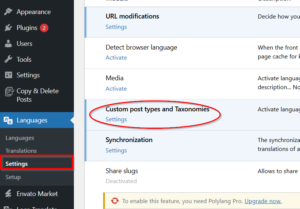
Custom Post Types section:
☑ Services
☑ Team
☑ Pests
☑ Portfolio

Step 2: Translate Service Example
Services → All Services
Hover over "Bed Bugs Control" → Click "Add translation"
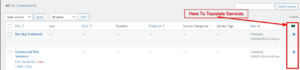
Translate:
– Title: “Contrôle des termites”
– Description: French version
– Service meta fields (price, duration, etc.)
– Featured image (optional)
Step 3: Connect Translations
Polylang automatically connects:
-
Original: “Termite Control” (English)
-
Translation: “Contrôle des termites” (French)
-
Translation: “Termitenbekämpfung” (German)
Translating Menus
Step 1: Create Language-Specific Menus
Step 2: Assign Menu Locations
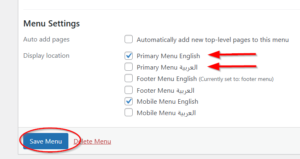
Step 3: Language Switcher Menu Item
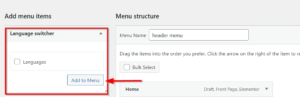
Add language switcher to menu:
-
Edit menu
-
Add “Language Switcher” item
-
Configure display options
Customizer Strings Translation
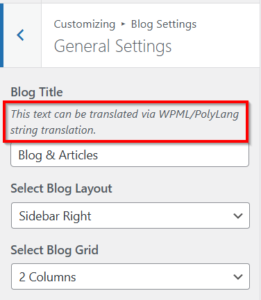
To translate Customizer strings:
-
Polylang → String Translations
-
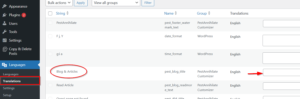
Search for the string (e.g., “Blog & Articles”)
-
Add translations for each language