Showcase successful projects, case studies, and before/after results.
Adding a Portfolio Item
Step 1: Navigate to Portfolio
Dashboard → Portfolio → Add New
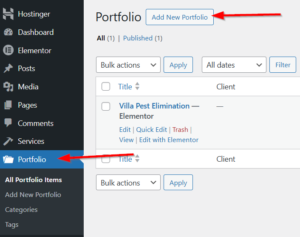
Step 2: Add Basic Info
-
Title: Project name (e.g., “Commercial Termite Treatment”)
-
Content: Project description (optional)
Available Templates
Portfolio can use:
-
Default Template: Theme’s built-in service layout
-
Elementor Template: Pre-built service page designs
-
Full Width: Custom Elementor design
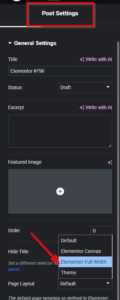
for Elementor :
- Edit it with Elementor
- Choose page layout as Elementor Full Width
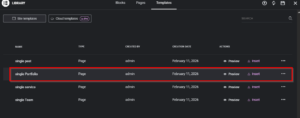
- Then, from the saved template,s insert a single Portfolio template
If you relied on the default template :
Step 3: Configure Portfolio Settings
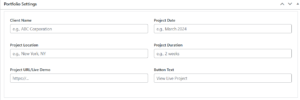
Project Details
| Field | Description | Example |
|---|---|---|
| Client Name | Who you worked for | “ABC Corporation” |
| Project Date | When completed | “March 2024” |
| Project Location | Where | “New York, NY” |
| Project Duration | How long | “2 weeks” |
| Project URL | Live demo link | https://example.com |
| Button Text | Link button text | “View Project” |
Client Testimonial
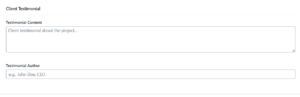
| Field | Description |
|---|---|
| Testimonial Content | What the client said |
| Testimonial Author | Who said it |
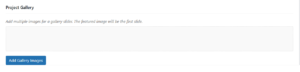
Project Gallery
Add multiple images for a gallery slider:
-
Click Add Gallery Images
-
Select images from media library
-
Images appear as thumbnails
-
Drag to reorder
-
First image is the featured image
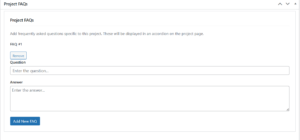
Project FAQs
Add project-specific FAQs: